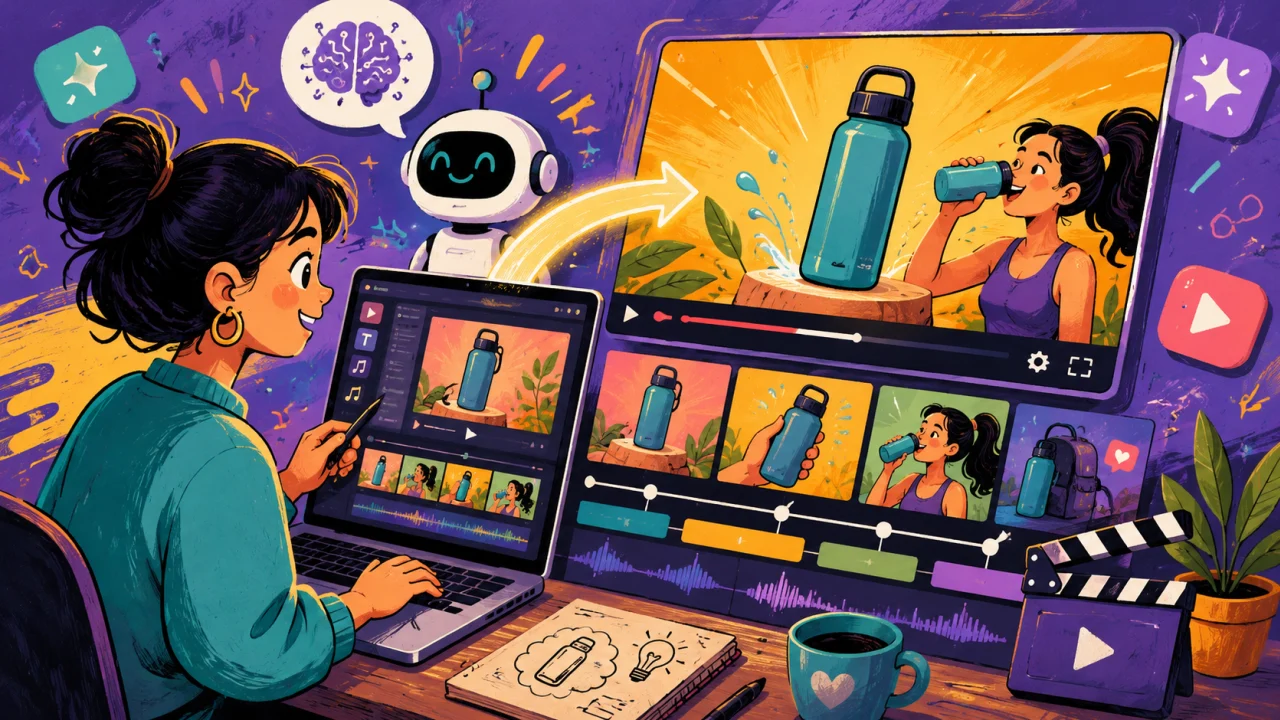

You want to know if Canva can make images you’d actually use, not just weird art that looks fun for five seconds. The canva ai image generator can create useful backgrounds, simple illustrations, mockup scenes, and social graphics when you give it a clear prompt. It also has limits: text inside images, exact products, faces, hands, and brand consistency still need a human check.
Definition: The Canva AI image generator is a text-to-image tool inside Canva that turns written prompts into visuals. You describe what you want, pick a style or format, generate options, then edit the result inside Canva with templates, cropping, colors, and other design tools.
Key Takeaways

Canva is best when you need a fast starting image for a design, not a museum-quality final piece.
I tested 10 prompts tied to real work: Instagram posts, blog headers, YouTube thumbnails, flyers, product scenes, classroom art, podcast covers, Pinterest pins, character art, and website hero images.
The biggest lesson was not “write a better prompt.” It was this: generate a decent image, then edit it. Waiting for the perfect AI result wastes time.
What Is the Canva AI Image Generator?

The Canva AI image generator is Canva’s built-in tool for making images from words. You type a prompt like “warm photo of a coffee cup on a wooden desk, morning light, space on the left,” and Canva returns image options you can place into a design.
What You Can Use It For
You can use it for blog images, social posts, classroom graphics, poster backgrounds, mood boards, product scene ideas, and simple illustrations. It’s handy when you don’t have a photo, don’t want to search stock libraries for 30 minutes, or need a visual that fits a very specific idea.
A real example: if you run a local bakery, you might need a cozy background for a fall cupcake sale. Canva can make the setting. You still add the sale date, price, and logo yourself.
Where It Lives Inside Canva
Inside Canva, AI image creation is part of its AI and design toolset, alongside features like Magic Design, Background Remover, and template editing. The exact menu names can shift as Canva updates the app, but the basic flow stays the same: open a design, find the AI image tool, type a prompt, generate, then edit.
What You Need Before You Start
You need a Canva account, a design size, and a clear idea of where the image will go. That last part matters. A square Instagram post needs a different image than a wide blog header. If you skip that, you’ll get pretty pictures that don’t fit.
How the Canva AI Image Generator Works
AI image tools work by matching your words to patterns learned from images and captions. You’re not giving the tool a paintbrush. You’re giving it directions.
How Prompts Turn Into Images
A prompt tells Canva the subject, style, mood, and layout. “A dog” is weak. “A small brown dog sitting beside a red rain boot, soft studio light, simple background, cute children’s book style” gives the tool more to work with.
Short can be good. Vague is bad.
Why Clear Words Beat Long Prompts
Long prompts can confuse the image. In my experience, Canva does better when the prompt is tidy and practical. Aim for one subject, one style, one setting, and one use case. You don’t need a 90-word novel.
Ask yourself: could a busy designer understand this in one read? If yes, the tool has a better shot too.
What Style, Size, and Layout Choices Change
Style tells the image how to feel: photo, watercolor, 3D, sketch, flat illustration. Size and layout decide whether the result fits a post, flyer, slide, or website banner. Layout words help a lot. Try “empty space on the right” or “centered subject with clean background.”
My 10-Prompt Canva AI Image Test
I tested 10 common content jobs because that’s how people actually use Canva. You don’t sit around asking for random dragons. You need a graphic by 3 p.m.
Prompt 1: Instagram Post Background
Prompt idea: “Pastel desk scene with a notebook, coffee cup, and soft morning light, flat lay, empty space in the center.”
Result: Good. This was one of the easiest wins. Canva made a clean background that would work behind a quote or promo. I’d crop it and add text in Canva, not ask the AI to create the text.
Prompt 2: Blog Header Image
Prompt idea: “Wide blog header image of a person planning content on a laptop, warm home office, natural light, modern editorial photo style.”
Result: Usable after cropping. The vibe was right. The hands needed a close look, and the laptop details were mushy. For a header, that’s usually fine because the image sits behind a title or gets cropped wide.
Prompt 3: YouTube Thumbnail Idea
Prompt idea: “Excited creator pointing at a blank laptop screen, bright studio light, bold colorful background, high energy.”
Result: Mixed. Canva got the big shapes right, but the face looked too polished and the hand looked odd. For YouTube, I’d use this as a rough concept, then replace it with a real face photo if trust matters.
Prompt 4: Small Business Flyer Image
Prompt idea: “Cozy neighborhood bakery counter with fresh cupcakes, warm light, inviting photo style, space at top for headline.”
Result: Strong. This is the kind of job Canva handles well. It doesn’t need exact product accuracy. It needs mood. The image gave a friendly small-shop feeling.
Prompt 5: Product Mockup Scene
Prompt idea: “White skincare bottle on a bathroom counter, green plant, clean spa style, soft shadows, product label blank.”
Result: Useful but risky. The bottle shape looked fine, but AI can invent strange label edges or odd reflections. If you sell a real product, don’t use AI to fake the exact item. Use a real product photo.
Prompt 6: Classroom Worksheet Art
Prompt idea: “Simple black and white line drawing of a frog on a lily pad, friendly classroom worksheet style.”
Result: Good. Simple art worked better than detailed art. Teachers could use this kind of image for worksheets, posters, or activity pages, as long as they check usage rights in Canva’s current terms.
Prompt 7: Podcast Cover Concept
Prompt idea: “Minimal microphone on a blue table, soft shadow, modern podcast cover art style, centered composition.”
Result: Clean, but a bit generic. It needed Canva’s design tools to shine: better color, a frame, and real title text added later.
Prompt 8: Pinterest Pin Graphic
Prompt idea: “Bright kitchen counter with meal prep bowls, overhead photo, fresh vegetables, clean healthy lifestyle style, empty space on left.”
Result: Very usable. Pinterest graphics need clear themes and vertical layouts. Canva gave a nice base image, though I’d test contrast before adding headline text.
Prompt 9: Simple Character Illustration
Prompt idea: “Friendly cartoon gardener holding a small plant, simple flat illustration, green overalls, clean white background.”
Result: Cute, but not consistent. If you need the same character in 12 poses, Canva may struggle to keep the face and clothes the same. One-off character art? Fine.
Prompt 10: Website Hero Image
Prompt idea: “Wide hero image of a small team working around a table, bright office, friendly startup feel, room on right for headline.”
Result: Close, not finished. It had the right feel, but faces and small details needed checking. For a live business homepage, I’d be careful. Your hero image says, “Trust us.” Weird fingers say the opposite.
What Worked Best in the Test
Images That Looked Ready to Use
Backgrounds, simple scenes, classroom art, and lifestyle images came out best. They don’t require exact detail. They need mood, color, and space for your message.
The bakery flyer, Instagram background, and Pinterest kitchen image were the strongest results in my test.
Prompts That Needed Small Fixes
Blog headers, podcast covers, and website hero images were close but needed editing. Cropping helped. So did adding real text inside Canva instead of asking the image tool to make words.
Designs That Worked Better With Canva Templates
Here’s the under-discussed part: the AI image alone is rarely the finished design. A good Canva template can make an average AI image look planned. Drop the image into a template, match the colors, add readable text, and suddenly the whole thing feels less like a toy.
What Did Not Work Well
Text Inside Images Was Still Risky
If you ask AI to put words on a sign, shirt, package, or poster, check every letter. AI image tools can produce fake letters, misspellings, or marks that look like text but aren’t.
Add important words in Canva’s text editor instead. It’s cleaner and safer.
Faces, Hands, and Tiny Details Needed Checking
Faces can look waxy. Hands can have too many fingers. Small objects can melt into the background. Don’t publish fast just because the first result looks good at thumbnail size.
Zoom in. Then zoom in again.
Product Accuracy Was Not Perfect
The tool can create a “soap bottle” or “coffee bag,” but it won’t know your exact item unless you use real brand assets. For ecommerce, use real photos when the product must match what ships to the customer.
The Best Canva AI Workflow Is Generate, Then Edit
Why You Should Not Wait for the Perfect Image
The slowest way to use Canva AI is to keep regenerating the same idea 20 times. You’ll chase tiny improvements and still need to edit.
A better path: generate four options, pick the closest one, then fix the design around it.
How to Fix Results With Crop, Colors, and Background Remover
Use crop to hide weak areas. Use brand colors to make the design feel like yours. Use Background Remover when the subject is good but the setting is messy. If the image is too busy, blur it or place a colored shape behind your text.
Small edits do big work.
When a Template Makes the AI Image Look Better
Templates help with spacing, type, balance, and hierarchy. That means you can use AI for the picture and Canva for the design. This is the sweet spot.
When Canva AI Images Can Hurt Your Brand
Why Matching Your Brand Style Is Hard
AI may give you one great image, then fail to match it next time. If your brand needs the same look every week, save prompt notes, color codes, and style choices. Even then, expect drift.
What to Check Before You Use an Image in an Ad
Before using an AI image in a paid ad, check faces, hands, product details, text, trademarks, and whether the image matches your promise. If you sell a real service, don’t show fake results that imply something you can’t deliver.
When You Should Use a Designer, Photographer, or Stock Photo
Use a designer for brand systems, a photographer for real people or products, and stock photos when you need quick realism. Use Canva AI when speed, mood, and rough creative direction matter most.
Simple Prompt Formula You Can Copy
Use this formula:
Subject + style + setting + use case + layout note.
Example: “Fresh cupcakes on a bakery counter, warm photo style, cozy neighborhood shop, flyer background, empty space at top.”
Subject: Say What the Image Is About
Name the main thing. Don’t make Canva guess.
Style: Pick the Look You Want
Try photo, watercolor, flat illustration, 3D, pencil sketch, or editorial style.
Use Case: Tell Canva Where the Image Will Go
Say “Instagram post,” “blog header,” “worksheet,” “flyer,” or “website hero.” That helps the image fit the job.
Fix Words: Add Color, Mood, and Space
Use words like “warm,” “clean,” “bright,” “soft shadows,” “simple background,” or “empty space on the left.” These are small clues with a big payoff.
Canva AI Image Generator vs Other Tools
When Canva Is the Easier Pick
Canva wins when you want image creation and design editing in one place. If you’re making a flyer, classroom handout, Instagram post, or quick blog graphic, staying inside Canva saves steps.
When DALL-E or Midjourney May Be Better
DALL-E and Midjourney may give you stronger art direction, richer detail, or more interesting styles, depending on the prompt and settings. They can be better for concept art, surreal images, and polished visual experiments.
When Stock Photos Still Win
Stock photos still win for real-world accuracy: medical settings, legal topics, food packaging, product shots, and human emotion. If the image must look completely real, don’t force AI into the job.
Who Should Use Canva AI Image Generator?
Small business owners can use it for fast promo backgrounds and social posts.
Teachers and students can make simple classroom visuals, worksheet art, and project graphics.
Bloggers and content creators can build headers, pins, thumbnails, and mood images.
Social media managers can test visual ideas before asking a designer for a final version.
If you need perfect brand control, use it with care. If you need a fast starting point, it’s a handy tool.
FAQ
Is Canva AI Image Generator free?
Canva has free and paid features, and access can change by plan and region. In general, you can try AI image creation from inside Canva, but usage limits or certain tools may depend on your account. Check the options shown in your Canva workspace before planning a large project.
How do you use Canva AI Image Generator?
Open a Canva design, find the AI image tool, type a clear prompt, choose a style or format if offered, and generate images. Pick the closest result, place it into your design, then edit with crop, colors, text, and templates. Don’t ask the image tool to make important text.
Can you use Canva AI images for business?
You may be able to use Canva AI images for business, but you should review Canva’s current license terms inside your account. For client work, ads, or products, also check the image for fake text, odd details, trademarks, and anything that could mislead a customer.
Why does Canva AI make weird hands or faces?
AI image tools build pictures from learned visual patterns, and hands, faces, teeth, and tiny details are hard because they require exact structure. A thumbnail may look fine while a close view shows errors. Always zoom in before you publish anything with people in it.
Is Canva AI Image Generator better than DALL-E?
Canva is better when you want to make and edit a finished design in one place. DALL-E may be better when you want more image-focused prompting or creative variation. For everyday posts, flyers, and classroom graphics, Canva’s simple workflow is the main benefit.