
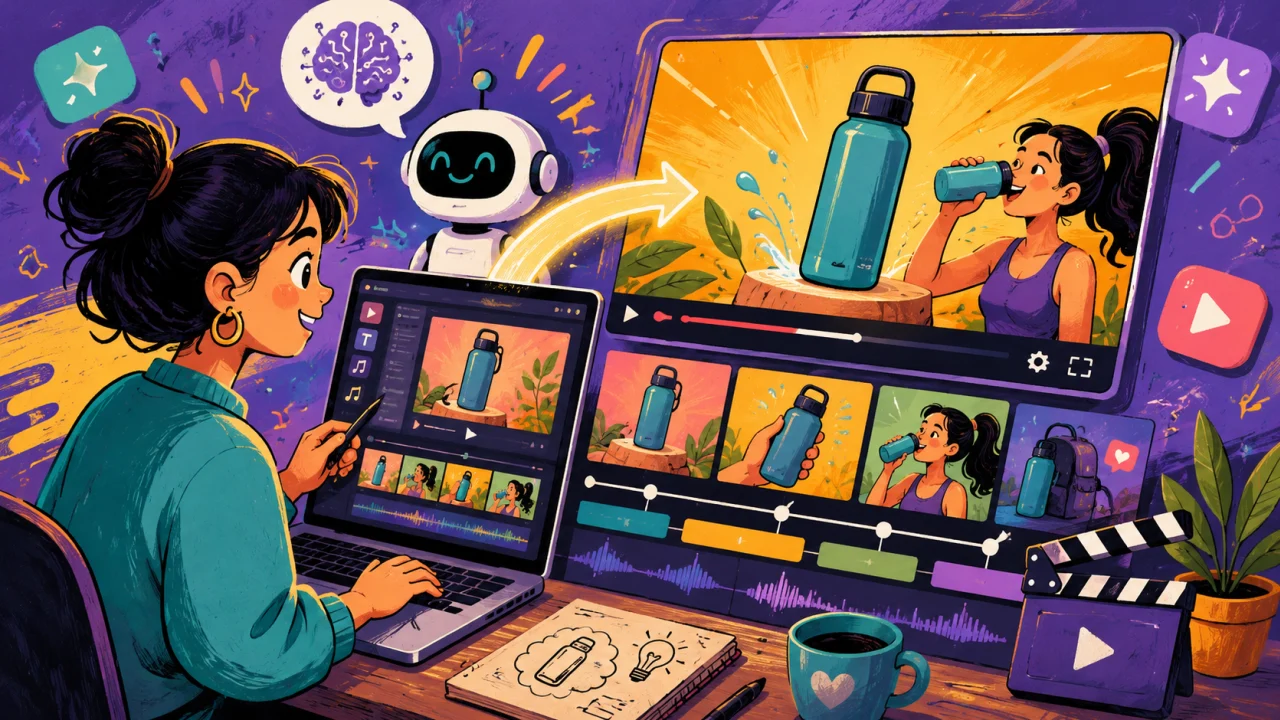
Your product idea feels too plain to turn into a good ad. The canva ai video generator can help you build a short video from a prompt, then you can shape it with Canva’s editor, captions, music, and export tools. The trick is not to ask AI to do the whole job; you give it a tiny story it can actually follow.
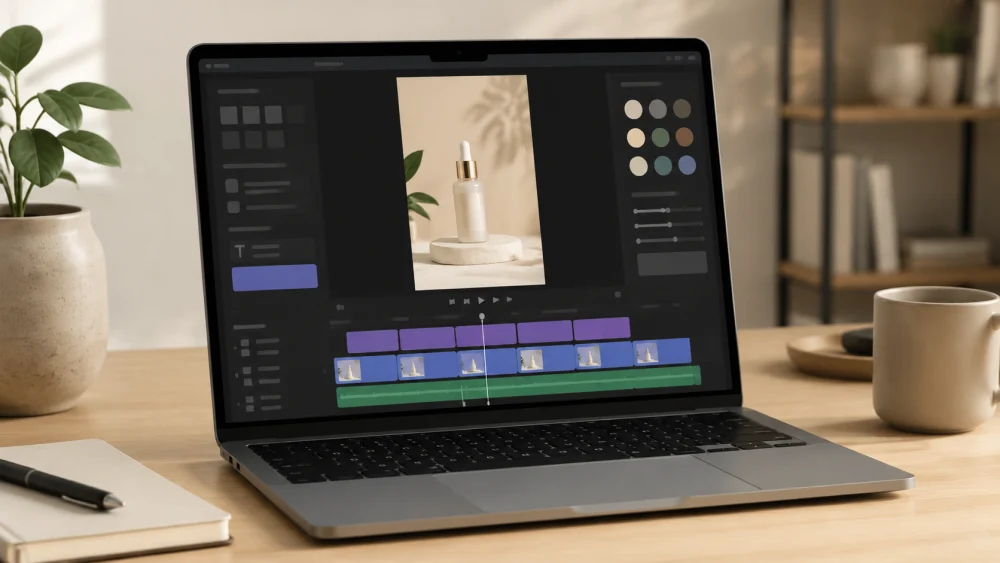
Definition: The Canva AI video generator is Canva’s AI video creation feature inside tools such as Magic Media and Text to Video. You type a prompt, generate a clip, then edit it with Canva layouts, text, audio, brand colors, stock footage, and exports like MP4.
Key Takeaways
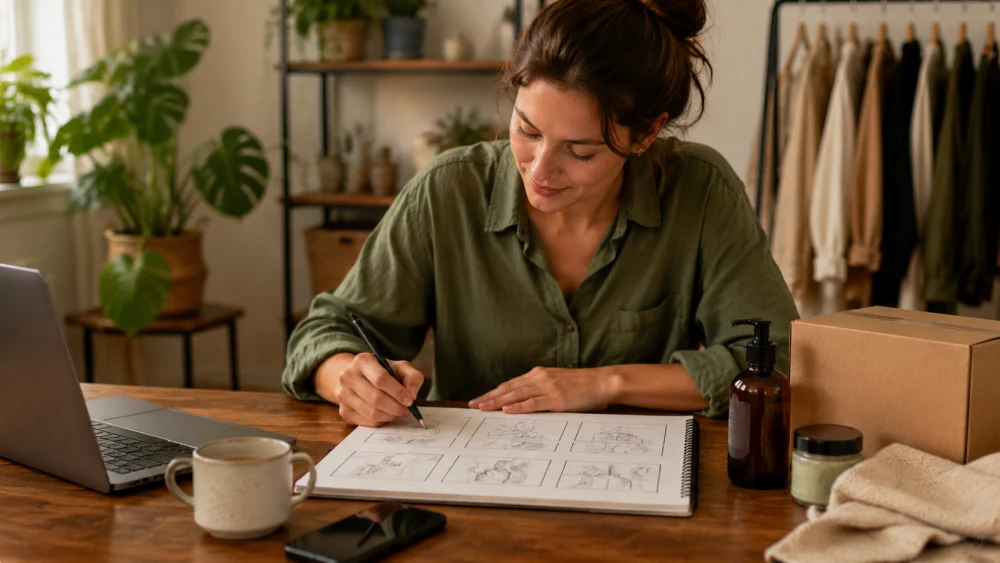
Start with a 30-second plan before you touch the prompt box. One product, one problem, one promise.
Use AI for the scene, mood, or background motion. Use Canva’s normal editor for the words people must read.
For a social ad, 1080 x 1920 vertical video is usually the safest starting size for TikTok, Instagram Reels, and YouTube Shorts.
Here’s the under-discussed part: the prettiest AI clip may be the wrong clip. A simple phone shot of your actual product can beat a glossy AI scene if the buyer needs trust more than style.
What the Canva AI Video Generator Does
The tool turns written prompts into short video clips. In plain English, you describe what you want to see, and Canva creates moving footage you can place inside a design.
You might type: “A cozy coffee shop counter with a reusable travel mug, warm morning light, soft camera movement.” Canva can then make a clip that feels like a small ad scene.
What You Can Make With It
You can make product teaser clips, sale announcements, service promos, simple explainer videos, event ads, and background scenes for social posts. For example, a local bakery could create a 30-second Instagram Reel for a new cinnamon roll special. A yoga teacher could build a short ad for a Saturday class.
In my experience testing AI video tools, Canva is best when the video only needs a short, clear visual. It works well for mood, setting, and simple action. It’s less strong when you need exact product details, perfect hands, or a character doing several precise moves.
What You Still Need to Add Yourself
You still need the message. Canva can help you make the picture, but it won’t magically know your offer, price, deadline, or why someone should care.
Add your product name. Add your main benefit. Add captions. Add the call to action. If the ad says “Order by Friday” or “Book a free estimate,” you should type that yourself in Canva text, not hope the AI renders it cleanly inside the video.
How the Canva AI Video Generator Works
Think of the process like building with blocks. The AI clip is one block. Text is another. Music, captions, timing, and size are the rest.
Start With a Short Product Message
Write one sentence before you create anything:
“My product helps [person] fix [problem] by [simple benefit].”
Example: “This spill-proof travel mug helps commuters keep coffee hot and bags dry.”
That sentence gives your ad a spine. Without it, you’ll chase pretty clips and end up with a video that looks nice but says almost nothing.
Pick the Right Video Size for Your Ad
For TikTok, Instagram Reels, and YouTube Shorts, choose a vertical 9:16 design. The common size is 1080 x 1920 pixels. For a Facebook feed ad, square 1080 x 1080 can still work. For YouTube pre-roll or a website hero video, use 16:9.
Don’t guess here. A great horizontal video can feel tiny on a phone screen. You want the product big enough for someone to understand it while holding a phone at arm’s length.
Use a Clear Prompt Canva Can Follow
A good prompt names the subject, setting, action, mood, and camera style. Keep it short, but not lazy.
Weak prompt: “Make a product ad for a mug.”
Better prompt: “A matte black travel mug on a wooden desk beside a laptop, morning sunlight, steam rising, slow close-up camera move, clean modern style.”
See the difference? The better prompt gives Canva a scene it can picture.
Add Text, Music, Voice, and Captions
Most social ads are watched without sound at first. Add captions or short text lines so the viewer gets the point in 2 or 3 seconds.
Keep text large. Keep it plain. Use 5 to 8 words per screen if you can. If your caption looks like a tiny receipt, people won’t read it.
Before You Start: Plan Your 30-Second Ad
A 30-second ad sounds short until you try to fill it. Then it feels long. The fix is a simple structure.
Choose One Product, One Problem, and One Promise
Don’t sell the whole store. Sell one thing.
Product: spill-proof travel mug. Problem: coffee leaks in your bag. Promise: hot coffee, dry backpack.
That’s enough. You can always make another ad later for colors, sizes, or gift sets.
Use a 3-Part Script: Hook, Proof, Call to Action
Use this timing:
0-5 seconds: Hook. “Coffee in your bag again?” 5-22 seconds: Proof. Show the mug, the lid, the commute, or the benefit. 22-30 seconds: Call to action. “Grab yours before Friday.”
This is not fancy. It works because the viewer knows what problem you solve before the ad starts showing off.
Keep Your Ad Simple Enough to Finish Fast
Your first Canva AI ad should not have 12 scenes, 3 characters, and a fake drone shot. Keep it to 3 or 4 scenes. Short ads die when they try to explain everything.
Ask yourself: would a tired person understand this while scrolling at 9:30 p.m.? If not, cut something.
Canva AI Video Generator: How to Make a 30-Second Ad
Here’s the clean workflow I’d use for a small business ad.
Step 1: Open Canva and Start a Video Design
Open Canva and choose a video format. For TikTok, Reels, or Shorts, pick a vertical mobile video canvas. If Canva shows templates, choose one with big text and simple spacing. You can delete parts you don’t need.
Step 2: Write a Prompt for Your Product Idea
Go to Canva’s AI video option, such as Magic Media or Text to Video, depending on what appears in your Canva account. Write a prompt that describes a scene, not a full ad strategy.
Use this formula:
“[Product] in [setting], [action], [mood], [camera movement], [style].”
Example: “Reusable water bottle on a gym bench, person grabbing it after a workout, bright clean light, slow close-up, realistic style.”
Step 3: Generate the First Video Clip
Generate the clip and watch it once without judging too hard. Then watch it again and ask: does it show the product idea clearly?
If the clip looks wrong, change the prompt. Don’t keep clicking generate with the same weak prompt and hope luck saves it.
Step 4: Trim the Clip to Fit 30 Seconds
Put your best clip on the timeline. Trim dead space. If nothing happens for the first 2 seconds, cut it.
A simple 30-second ad can use this scene plan:
Scene 1: 0-5 seconds, problem. Scene 2: 5-15 seconds, product. Scene 3: 15-23 seconds, benefit. Scene 4: 23-30 seconds, call to action.
Step 5: Add Your Product Name and Main Benefit
Place your product name near the top or center where it’s easy to read. Then add one benefit line.
Bad: “Premium solution for modern hydration needs.”
Better: “Cold water for 24 hours.”
If your product has a real number, use it. “24 hours,” “3 sizes,” “$19 starter pack,” or “ships in 2 days” gives the ad a firmer feel.
Step 6: Add Captions So People Can Watch Without Sound
Add captions for any voiceover or use short on-screen lines. Canva has caption and text tools, and you can also type the lines yourself for more control.
Keep captions away from the very bottom of the screen. TikTok, Instagram, and YouTube controls can cover low text.
Step 7: Export Your Ad for TikTok, Instagram, or YouTube Shorts
Export as MP4 for social posting. Before publishing, play the video on your phone. Not your laptop. Your phone.
Look for three things: tiny text, awkward cropping, and slow pacing. If the first 3 seconds feel sleepy, trim again.
Prompt Examples for a 30-Second Canva AI Ad
Example Prompt for a Small Business Product
“A handmade ceramic candle on a small bedside table, warm evening light, flame glowing softly, cozy bedroom, slow camera push-in, realistic product ad style.”
Use this for mood-based products like candles, soaps, home goods, or gifts.
Example Prompt for a Service Ad
“A clean home office desk with a laptop showing a calendar, person writing notes, bright morning light, calm helpful mood, slow side camera movement, realistic style.”
Use this for coaching, bookkeeping, consulting, tutoring, or scheduling services. Then add your own text with the actual offer.
Example Prompt for a Social Media Sale
“A bright retail shelf with colorful sneakers, quick close-up movement, energetic store lighting, clean modern ad style, no readable text.”
That last part matters: “no readable text.” AI-generated words inside footage can turn into mush. Put sale copy in Canva text instead.
What to Fix When the AI Video Looks Weird
AI video can look great for one second and strange the next. That’s normal. Fix the ad like an editor, not like a gambler.
Fix Strange Hands, Faces, or Motion
If hands look twisted or faces shift, crop tighter on the product. You can also cover the weak part with a text box, cut the scene shorter, or replace it with Canva stock footage.
For product ads, you usually don’t need a human face unless it adds trust.
Fix Text That Looks Wrong Inside the Video
Do not rely on AI to create readable labels, prices, or logos inside the generated clip. Add those in Canva afterward.
This one fix saves a lot of ads. Clean text is a buyer signal. Garbled text makes the ad look fake.
Fix Clips That Feel Too Slow or Too Busy
If the clip drags, shorten it. If it feels messy, use fewer scene changes and bigger text.
A 30-second ad should feel like a walk to the answer, not a maze.
SERP Gap: Why Your Ad May Look Nice but Still Not Sell
Pretty is not the same as persuasive. This is where AI video tutorials tend to go soft.
Make the First 3 Seconds Clear
Your hook should tell the viewer why to stop. Try a problem line:
“Still spilling coffee on your commute?” “Need a birthday gift by Friday?” “Your dog hates bath time?”
Specific beats cute.
Show the Problem Before the Product
If you show the product first, the viewer may not know why it matters. Show the pain, then show the fix.
For a travel mug, show the bag leak first. For a meal prep service, show the empty fridge first. For a 1970-themed diner promo, show a bored lunch break, then the bright burger basket.
End With One Simple Next Step
Don’t ask viewers to “learn more, shop now, follow us, and share.” Pick one.
Use “Order today,” “Book a free quote,” or “Visit us this weekend.” Simple lines get read.
SERP Gap: What Canva AI Video Generator Cannot Do Well Yet
The canva ai video generator is useful, but it is not a full ad team in a box.
When to Use Stock Footage Instead of AI Video
Use stock footage when the scene needs to look normal and reliable: people shaking hands, a clean office, a busy cafe, or a delivery van. Stock can look more believable than AI when human movement matters.
When to Record Your Own Product Shot
Record your own shot when the product details matter. A real 5-second phone clip of your mug lid, lotion texture, or bakery box can carry more trust than a perfect-looking fake scene.
That’s the contrarian move: use AI around the product, not always instead of the product.
When a Freelancer Is Still Worth Paying
Hire help when the ad needs a tight story, legal care, complex editing, or a polished brand feel. If you’re spending $2,000 on media, paying someone to improve the ad may make sense. If you’re testing a $50 weekend promo, Canva may be enough.
Best Settings for a 30-Second Ad in 1970 Examples
For 1970 examples, think of the year as a creative theme, not a technical rule. You might make a retro diner ad, a vintage gym poster-style clip, or a throwback record store promo.
Best Size for TikTok and Instagram Reels
Use 1080 x 1920 vertical. Keep key text in the middle third of the frame so app buttons don’t cover it.
Best Length for Each Scene
Use 4 to 8 seconds per scene. Faster than that can feel jumpy. Slower than that can feel flat unless the visual is strong.
Best Export Choice for Clean Playback
Export as MP4. Watch the final ad on your phone before posting. If the text is hard to read, make it bigger and cut extra words.
Quick Checklist Before You Publish
Is the Product Easy to See?
If someone can’t name the product after one watch, the ad needs a clearer shot or fewer distractions.
Can Someone Understand It With No Sound?
Mute the video. If it still makes sense, you’re in good shape. If not, add captions or clearer on-screen text.
Does the Last Line Tell the Viewer What to Do?
End with one action. A short ad should not leave people guessing.
FAQ
Is Canva AI Video Generator free to use?
Canva offers free and paid tools, but AI video access can depend on your plan, feature limits, and the version of Canva available in your account. Check your Canva editor for Magic Media or Text to Video. If you hit a limit, you may need Canva Pro or more credits.
Can Canva AI Video Generator make a full ad from one prompt?
It can create a video clip from one prompt, but a strong ad still needs editing. You should add your product name, benefit, captions, music, and call to action yourself. One prompt may create a scene. It usually won’t create a finished sales message.
How long should a Canva AI video ad be?
For TikTok, Instagram Reels, and YouTube Shorts, 15 to 30 seconds is a practical range. A 30-second ad gives you enough room for a hook, proof, and call to action. If the offer is very simple, 15 seconds may work better.
Can I use Canva AI videos for business ads?
You can use Canva videos for business ads, but review Canva’s current terms and any rules tied to the AI feature you use. Also check your own content for trademarks, fake claims, and unclear product images. Business ads need clean messaging, not just good-looking motion.
Why does my Canva AI video look blurry or strange?
AI video can struggle with faces, hands, logos, small text, and exact product details. Fix this by using shorter clips, cropping around the best part, adding your own Canva text, or mixing in stock footage and real product shots. Don’t force a bad clip to carry the whole ad.

